· 14 min read
Cowork Skills, Tools, and Skill Management
Going deeper into Cowork custom skills as an extensibility method to look at how to create, improve with the help of some powerful features with Skill Tools and a Quality Framework in use to assess your own skills to make effective skills that tailor capabilities to suit your personal ways of working.

Introduction
In my earlier post about exploring the Cowork agent, I touched on custom skills toward the end - how you can create a SKILL.md file in your OneDrive and have Cowork use it as a personalised set of instructions for specific tasks. At the time, I noted a casing issue with the skills folder that prevented them from loading, but once fixed the feature started to work.
Since then I’ve been spending more time with skills: building new ones, understanding how the agent picks them up, and working out the best way to improve them over time with the new Skills Management skill. This post is a deeper look at all of that.
What Are Cowork Skills?
Skills are markdown files you author yourself that give Cowork specific, repeatable instructions for a type of task. Think of them as personal standard operating procedures - you define the steps once, and Cowork can follow them whenever a matching task comes up.
This is different from a prompt you type each time. A skill lives in your OneDrive, persists across sessions, and can be reused without you needing to remember or repeat the details.
Where Skills Live
Skills are stored in a specific folder in your OneDrive:
/Documents/Cowork/skills/Each skill gets its own sub-folder named after the skill, and inside that folder you create a SKILL.md file. Using the example in my last blog post, the folder structure looks like this:
OneDrive/
└── Documents/
    └── Cowork/
        └── skills/
            ├── report-important-information-to-my-manager/
            │   └── SKILL.md
            └── your-next-skill/
                └── SKILL.md
Important: At the moment, the folder name is case-sensitive. Use
skills(all lowercase) — if your folder is namedSkillsorSKILLS, Cowork will not pick them up.
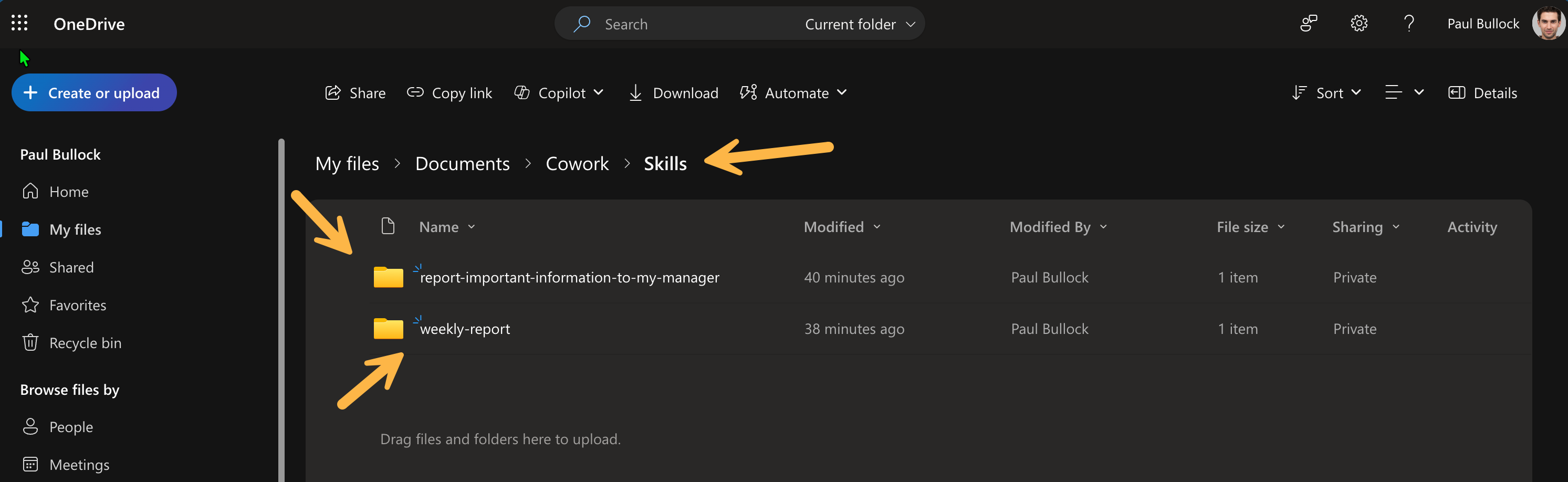
This structure follows a very similar pattern to GitHub Copilot Skills within a repo, or SharePoint Skills within the Agent Assets folder (Yes! That’s a thing now).
Creating a Skill File and it’s Structure
A SKILL.md file has two parts: a YAML frontmatter block and a markdown body. Not familiar with Markdown, check out this great resource Markdown Cheat Sheet to learn.
Frontmatter provides the metadata Cowork uses to identify and describe the skill, when analysing your Cowork task and prompt it will consider best fit or you can explicitly call them under the Add Work Content option. Here is an example of the skill file:
---
name: your-skill-name
description: A short description of what this skill does and when it should be used
---
Body is where you write the actual instructions. You can be as detailed as you need — Cowork will follow the steps you define. Structure it clearly with headings and bullet points.
Here is a full example:
---
name: report-important-information-to-my-manager
description: When I have important information to report to my line manager, I want to be able to do so in a clear and concise manner, so that they can understand the situation and take appropriate action if necessary with either Email or Teams Notifications
---

# Report Important Information to my Line Manager

You are a notification skill that helps me quickly report important information to my line manager.

## What should this skill do

Follow this process when reporting information

- Find my line manager
- Ask whether to notify by email or Teams message
- Ask how critical this is: Notify, Important, or Critical
- Ask the user what has happened, or refer to an email or message
- Ask the user if anyone else should be notified
- Write a message explaining the situation, including the criticality level
- Start a Teams chat to coordinate on the issue, named by the topic
Checking and Diagnosing Skills
Once you have created your skills, you can verify Cowork can see them by using the /skill command inside the Cowork chat. This will list the skills Cowork has loaded from your OneDrive folder.
Note: This feature was originally called “Skills” in the skills tab, which has been renamed to “Skills Management” and has some really good feature enhancements.
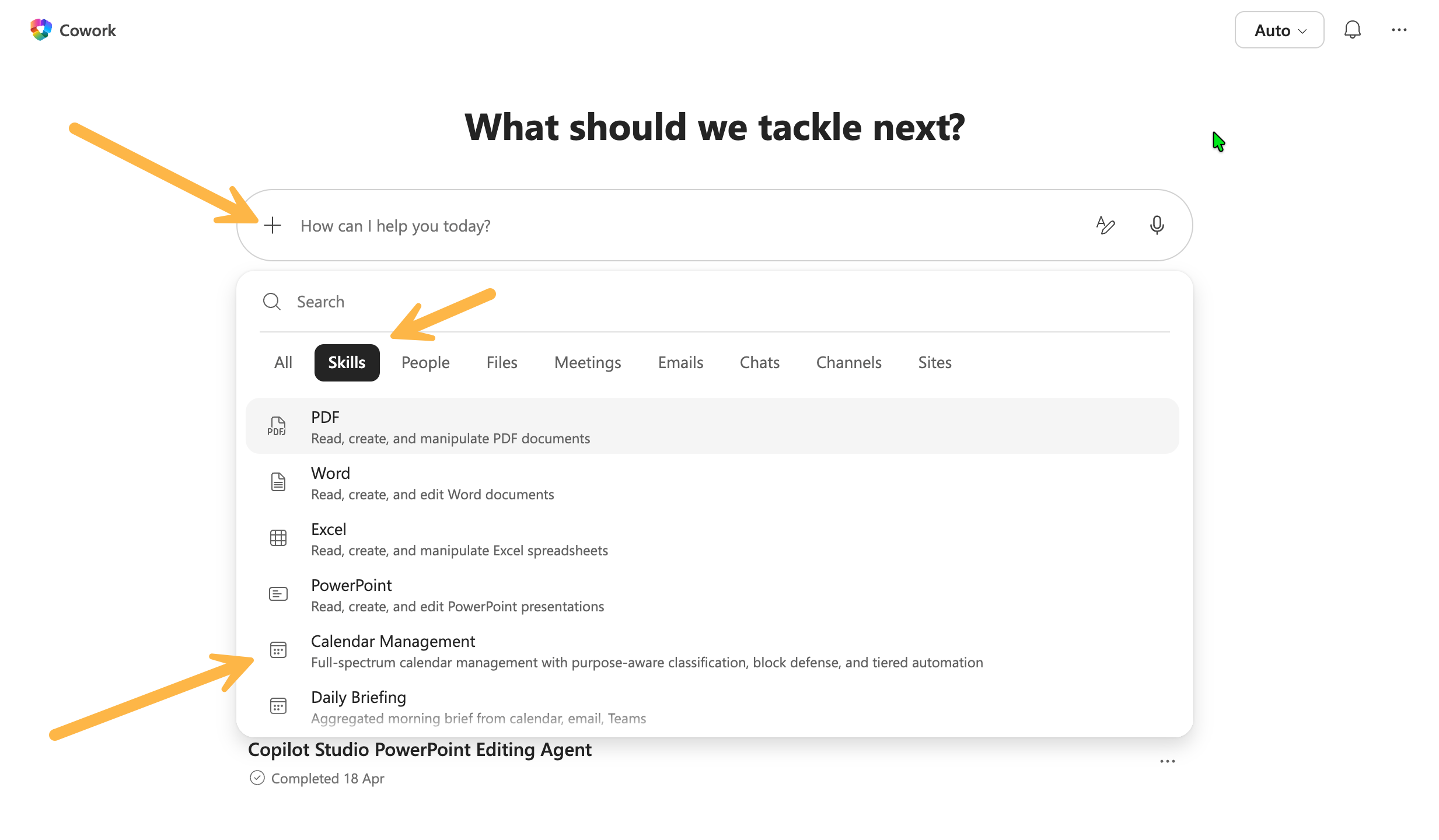
If a skill is missing or it is not behaving, either:
- The skills list isn’t alphabetically organised, in my exploration this appears at the bottom of the list
- Alternatively and the best way to diagnost the issues is to create a Cowork session and ask the agent if it can find the skill calling the /skills or Skill Management skill expclitly.
Building and Improving Skills with help from Cowork
When demoing Cowork recently, I showed the Skills Management Feature and it surprised me when it came out with a quality report after requesting a “Quality Audit” on the skill (from above and last blog post- 45/100 - Woot!. Actually despite a low score, this came up with some great suggestions to improve.
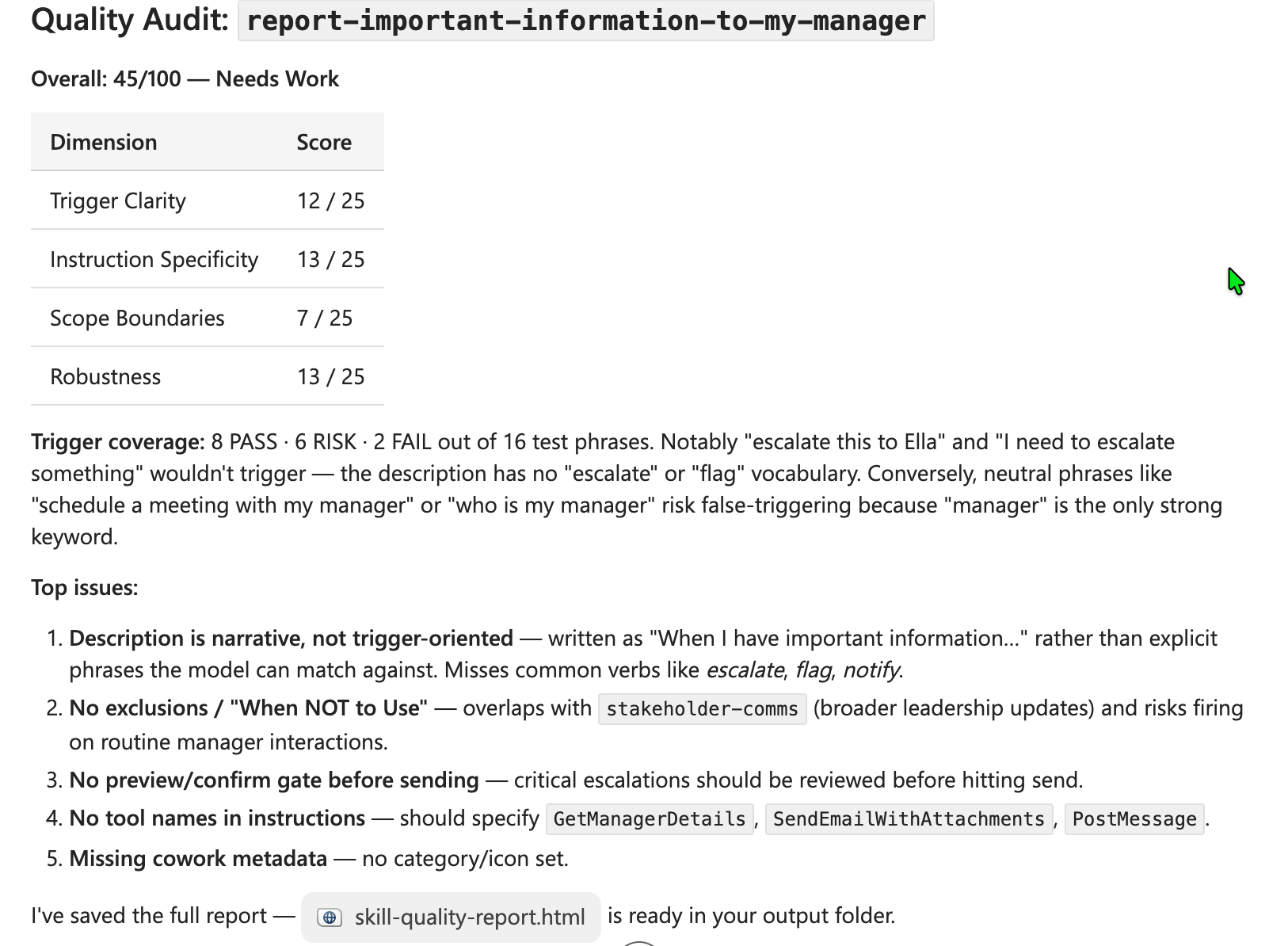
Actually, this was a eye opener on multiple levels:
- not only it has shown how to improve my own skill
- it has shown the internal tools for Cowork that is called upon when running tasks e.g. GetManagerDetails, SendEmailWithAttachments, PostMessage. As it has indicated this being a flaw in my skill
- Cowork Metadata? This is another aspect not in the docs, but feels like it would make sense since other built in skills have icons associated with them.
The tools aspect caught my eye the strongest, as this is the first time I have seen some form of reference to the full capabilities of the agent. There is a small voice in my mind this could have been made up by the LLM, but its the first time I have seen anything like this coming from an agent.
Documentation
Note: Supplied by Skills Management skill
As this next bit was based on the output from a prompt - this is a long reference. Here’s the full documentation for every tool organized by category:
📧 Outlook — Email
ListMessages — List emails ordered by date with optional filters (sender, date range, unread, flagged, has attachments, importance). Use this for “latest emails” or “unread emails.” Supports pagination via
next_link.GetMessage — Get full content (subject, body, sender, attachments) of a specific email by ID. ID must come from a prior list/search call.
SearchM365 — Unified search across files, email, Teams, calendar, Power BI. Files use semantic search; email/Teams/calendar use keyword KQL. Filterable by date and sender.
SendEmailWithAttachments — Compose and send an email immediately. Supports recipients (names or addresses), CC/BCC, attachments (workspace files or OneDrive URIs), and importance level.
CreateDraftMessage — Create a draft in your Drafts folder without sending. Pair with UpdateDraft / AddDraftAttachments / SendDraftMessage.
UpdateDraft — Modify an existing draft’s recipients, subject, or body. Does not send.
SendDraftMessage — Send an existing draft by ID.
AddDraftAttachments — Attach workspace files to an existing draft.
ReplyToMessage — Reply to the sender of an email. Optional CC/BCC. Sends immediately.
ReplyAllToMessage — Reply to all original recipients. Optional additional CC/BCC.
ReplyWithFullThread — Same as ReplyToMessage but preserves the full quoted thread; supports adding new
torecipients.ReplyAllWithFullThread — Same as ReplyAllToMessage but preserves the full quoted thread.
ForwardMessage — Forward an email to new recipients with the quoted thread, optional comment.
ForwardMessageWithFullThread — Identical to ForwardMessage (alias).
MoveMessage — Move an email to a different folder (use folder ID or well-known name like inbox/archive/junkemail).
DeleteMessage — Soft-delete (moves to Deleted Items).
UpdateMessage — Edit mutable properties: read status, importance, categories, focused/other classification.
FlagEmail — Set or clear follow-up flag (flagged / notFlagged / complete).
UploadAttachment — Upload a small attachment (≤3 MB, base64) to a message.
UploadLargeAttachment — Upload a large attachment (3–150 MB, base64, chunked).
DeleteAttachment — Remove an attachment from a draft.
ListMailFolders — List inbox folders with unread counts and IDs.
GetMailFolder — Get details of a specific folder, optionally with child folders.
CreateMailFolder — Create a new mail folder.
ListMailRules — List inbox rules with conditions and actions.
CreateMailRule — Create an inbox rule. Simplified params for common conditions (sender, subject contains) and actions (move, forward, mark read, etc.).
UpdateMailRule — Modify an existing rule (e.g., enable/disable).
DeleteMailRule — Remove an inbox rule.
GetAutoReplySettings — Read current out-of-office state.
SetAutoReply — Enable OOO with internal/external messages, audience, optional schedule.
DisableAutoReply — Turn off OOO.
📅 Outlook — Calendar
ListEvents — List calendar events. Returns master series for recurring meetings (not expanded instances).
ListCalendarView — List events in a date range with recurring meetings expanded into instances. Use for “what’s on my calendar this week.”
FindMeetingTimes — Suggest meeting times based on attendee availability, with duration and search window.
CreateEvent — Create a calendar event. Defaults to 30-minute Teams meeting unless
is_online_meeting=false. Supports recurrence patterns.UpdateEvent — Modify an event (time, attendees, body, location). Use
scope=all_in_seriesfor recurring series.DeleteEventById — Delete an event. Series scope supported.
CancelEvent — Cancel an event you organized, with optional message.
AcceptEvent — Accept a meeting invite with optional comment.
DeclineEvent — Decline a meeting invite.
TentativelyAcceptEvent — Tentatively accept.
ForwardEvent — Forward an event as FYI (does not add as attendee — use UpdateEvent for that).
GetRooms — List meeting rooms in your tenant.
GetUserDateAndTimeZoneSettings — Get your mailbox time zone and working hours.
💬 Teams
ListTeams — List teams you’ve joined.
GetTeam — Get details of a specific team.
ListChannels — List channels in a team.
GetChannel — Get details of a specific channel.
CreateChannel — Create a standard channel.
CreatePrivateChannel — Create a private channel with an owner.
UpdateChannel — Edit a channel’s display name or description.
ListChannelMembers — List members of a channel.
AddChannelMember — Add a user to a channel (use
roles=['owner']only for private channels).UpdateChannelMember — Change a member’s role (owner / member).
ListChannelMessages — Read recent messages from a channel.
PostChannelMessage — Post a message to a channel (by team_id+channel_id or names). Supports subject line, attachments, and Adaptive Cards.
ReplyToChannelMessage — Reply to a specific message in a channel.
ListChats — List your recent chats. Filter by type (oneOnOne / group / meeting), unread, or member.
GetChat — Get details of a specific chat.
CreateChat — Create a new 1:1 or group chat. Provide other participants (you’re added automatically).
UpdateChat — Change a chat’s topic.
ListChatMembers — List members of a chat.
AddChatMember — Add a member to an existing chat.
ListChatMessages — Read messages from a chat. Pass
person(name/email) to find their 1:1 chat automatically. Supports keyword and date filters.GetChatMessage — Get a specific message from a chat.
PostMessage — Send a Teams message. Pass
recipients(names or emails) — 1 person = 1:1, 2+ = group. Userecipients=['me']for self-chat. Supports attachments and Adaptive Cards.UpdateChatMessage — Edit the content of a chat message.
DeleteChatMessage — Delete a chat message.
GetMyRecentTranscripts — Get transcripts from your recent meetings within a date range.
ListMeetingTranscripts — List available transcripts for a Teams meeting (by join URL).
GetMeetingTranscript — Get the full text of a meeting transcript (timestamped, speaker-attributed).
📁 SharePoint & OneDrive
GetSite — Get a SharePoint site by hostname+path or site ID.
SearchSites — Search for sites by name.
ListSubsites — List subsites of a parent site.
GetDefaultDrive — Get your personal OneDrive (no args), or a SharePoint site’s default doc library (with
site_id).ListDrives — List document libraries in a SharePoint site.
SearchDrive — Search for files/folders within a drive.
GetDriveChildren — List contents of a folder (by drive_id+item_id, item_path, or web_url).
GetDriveItem — Get metadata for a file or folder.
ReadFileContent — Read a file’s text content. Fastest with a
download_urlfrom a prior list/search. Binary files (docx, pdf) saved to workspace and path returned.CreateFolder — Create a new folder in a drive.
ListLists — List SharePoint lists in a site.
ListListColumns — List columns in a SharePoint list.
ListListItems — List items in a SharePoint list with field values.
👥 People & Profile
GetMyDetails — Your own profile (name, email, title, department, office).
GetUserDetails — Look up a user by UPN or object ID. Will not work with display names — use SearchPeople first.
GetMultipleUsersDetails — Look up several users at once by UPN/IDs.
SearchPeople — Search by name or email; resolves contacts then directory.
GetManagerDetails — Get a user’s manager (defaults to you).
GetDirectReportsDetails — Get a user’s direct reports.
🔌 Microsoft Graph (raw)
QueryGraph — Make a GET request to any Graph API endpoint.
CallGraph — POST/PUT/PATCH to Graph (DELETE disabled). For operations not covered by specialized tools.
SearchM365 — Already listed under Email; spans files, email, Teams, calendar, Power BI.
🗂 Workspace File Operations
Read — Read a file’s contents. Supports text, images, PDFs (with page ranges), and Jupyter notebooks.
Write — Create or overwrite a file. Must read first if file exists.
Edit — Make exact string replacements in a file. Use
replace_allfor renames.NotebookEdit — Edit a specific cell in a Jupyter notebook (replace, insert, delete).
Glob — Find files by pattern (e.g.,
input/**/*.xlsx).Grep — Ripgrep-powered content search. Supports regex, file-type filters, multiline, context lines.
Bash — Run shell commands. Supports background execution and timeouts. Working directory persists.
🌐 Web & Images
web_search — Bing-powered search for current information. Use parallel calls for distinct subjects.
web_fetch — Fetch a web page and return its full text content.
search_images — Find public-license images by keyword. Returns 20+ Bing-hosted thumbnails per call.
render_ui — Render structured data as Adaptive Cards (charts, tables, KPIs, dashboards). One call per response.
✅ Tasks & Planning
TaskCreate — Create a tracked task (subject, description, optional activeForm spinner text).
TaskUpdate — Update a task’s status, owner, dependencies, or details.
TaskGet — Get full details of a task.
TaskList — List all tasks with status and dependencies.
TaskOutput — Read output from a background task (deprecated — prefer reading the output file).
TaskStop — Stop a running background task.
AskUserQuestion — Pose 1–4 multiple-choice questions to the user (each with 2–4 options).
EnterPlanMode — Enter planning mode for non-trivial implementation work.
ExitPlanMode — Exit plan mode after the plan file is written.
EnterWorktree — Create an isolated git worktree (only on explicit instruction).
ExitWorktree — Leave a worktree session, keeping or removing it.
Skill — Invoke a skill by name (e.g.,
pdf,docx,daily-briefing).Agent — Delegate a task to a specialized subagent (general-purpose, Explore, Plan, deep-research-agent, statusline-setup).
⏰ Scheduled Tasks
SetupScheduledPrompt — Create a recurring task. Frequency: Minute / Hour / Day / Week / Month / Once. One prompt per task.
GetScheduledPrompts — Read your existing scheduled tasks (returns version numbers).
EditScheduledPrompt — Modify an existing schedule (provide version for safe updates). Use
state: pausedto pause.DeleteScheduledPrompt — Permanently remove a scheduled task.
WOW - This gives us all lots of areas to explore, and whilst I haven’t tested every single tool, not only can we “declare” them to be used in our skills, I have seen these types of actions happening when interacting with Cowork.
I have more: Skills Framework
Yes, there was a second discovery, In understanding how Cowork assesses skills, I just asked: “Is there a skills framework you use to assess skills?” - Yes there is a quality system to help you improve your skills with a scoring system, so let’s break this down into the follow areas based on the response:
- Trigger Clarity - How precisely does the description tell the system when to invoke this skill?
- Instruction Specificity - How actionable is the body?
- Scope Boundaries - Does the skill know what it does NOT do?
- Robustness - Does it handle edge cases and failures?
With additional tests in
- Trigger Coverage Test - running evals about phrases of what should and shouldn’t trigger the skill
- Optimisation Principles
All of the above are factors in the scoring system. Whilst this may change, try asking Cowork (when calling /skills feature) yourself against your skills.
Conclusion
Every time I look at Cowork either for building skills or using to explore the features, I find my self being mind-blown with the level and depth of features in this agent.
Custom skills are one of the most interesting parts of the Cowork experience, as this gives me as a developer and architect ways to tailor experience and discover opportunities to add value to others using the agent + plus I like to play with new toys lol.
I do feel that the Quality and ability to list the tools should be part of ALL agents Microsoft produce to see the full extent of the capabilities or an agent itself - why? Its the same problem of what Copilot aims to solve to break that “creative or writers block”, there is a feeling of a “prompt block”, in where to start the conversation, and knowing the full extent of capabilities of the agent - like seeing all the colours in a colour palette.
I will keep building on my skills library and will share any patterns that emerge. If you build something interesting, I would love to hear about it.
Resources
The following resources could be useful for you to learn further:
- Getting Started with Cowork | Microsoft Learn
- Create and manage Cowork skills | Microsoft Learn
- Manage Copilot Cowork for your organization | Microsoft Learn
- Use agents in Microsoft 365 Copilot | Microsoft Learn
- Agents for Microsoft 365 Copilot overview | Microsoft Learn
- Microsoft 365 Copilot Frontier Program | Microsoft Adoption
- Markdown Guide — Cheat Sheet
Enjoy!