· 7 min read
Exploring the new Cowork Agent in Microsoft 365 Copilot
Cowork, the latest agent released from Microsoft’s Frontier programme, has been a positive experience for me. In this post, I share my insights and usage.
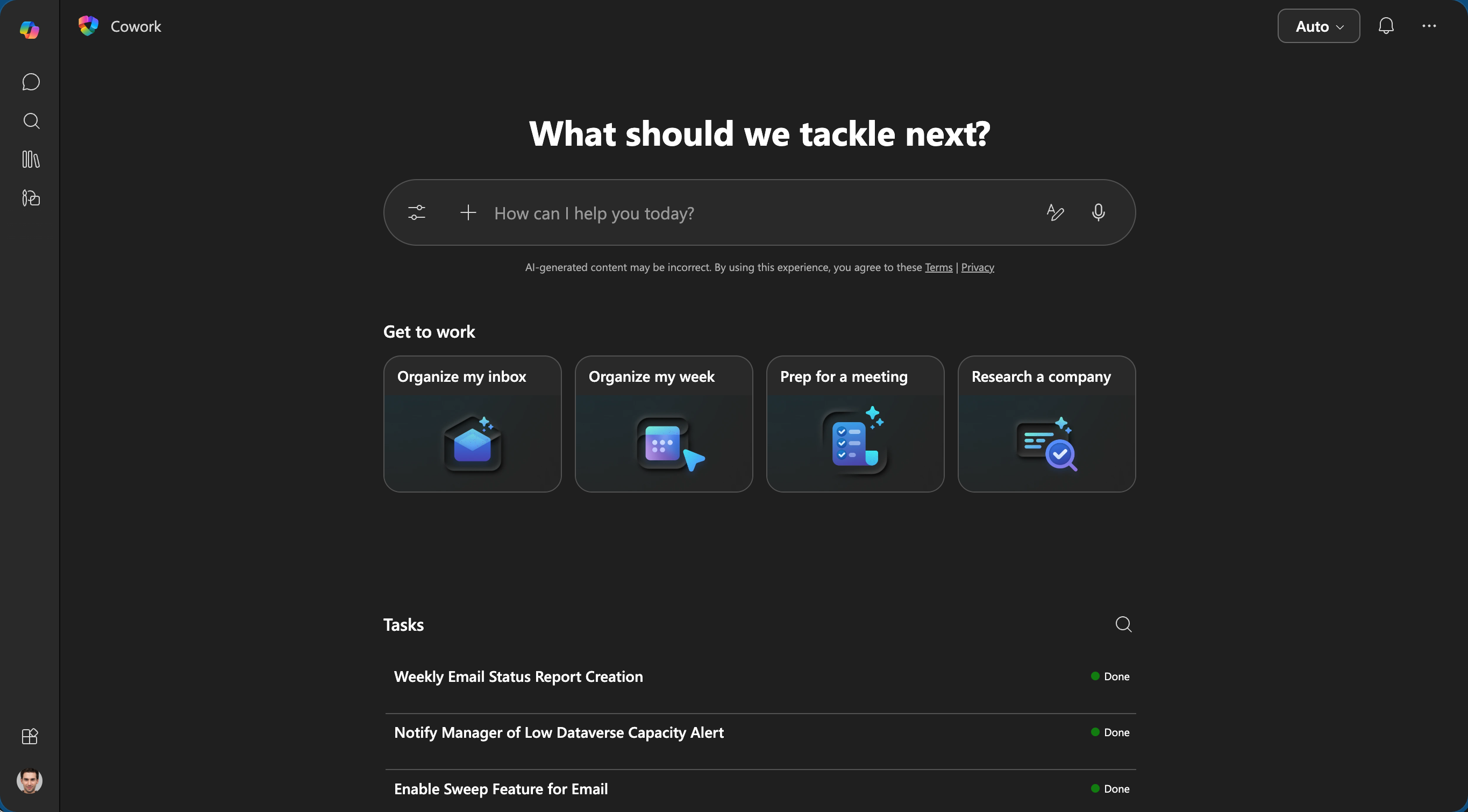
Introduction
Cowork has now rolled out to my tenant, so naturally I wanted to explore Cowork agent within Microsoft 365 Copilot and share some insights.
To frame this, the best way of thinking about what Cowork is, you have a one to many personal assistants on your team that can work semi-autonomously on tasks for you. You can start a task (or prompt), walk away and come back to see how they are doing - as my first impressions of the agent was mind-blowing 🤯.
Prerequisites
At the moment, this is available as a preview through the Frontier program which you can sign up for. There are other prerequisites such as having a Microsoft 365 Copilot license and the Anthropic models need to be enabled to use the agent - I have a feeling this won’t sit too well with EU users.
Enablement for users
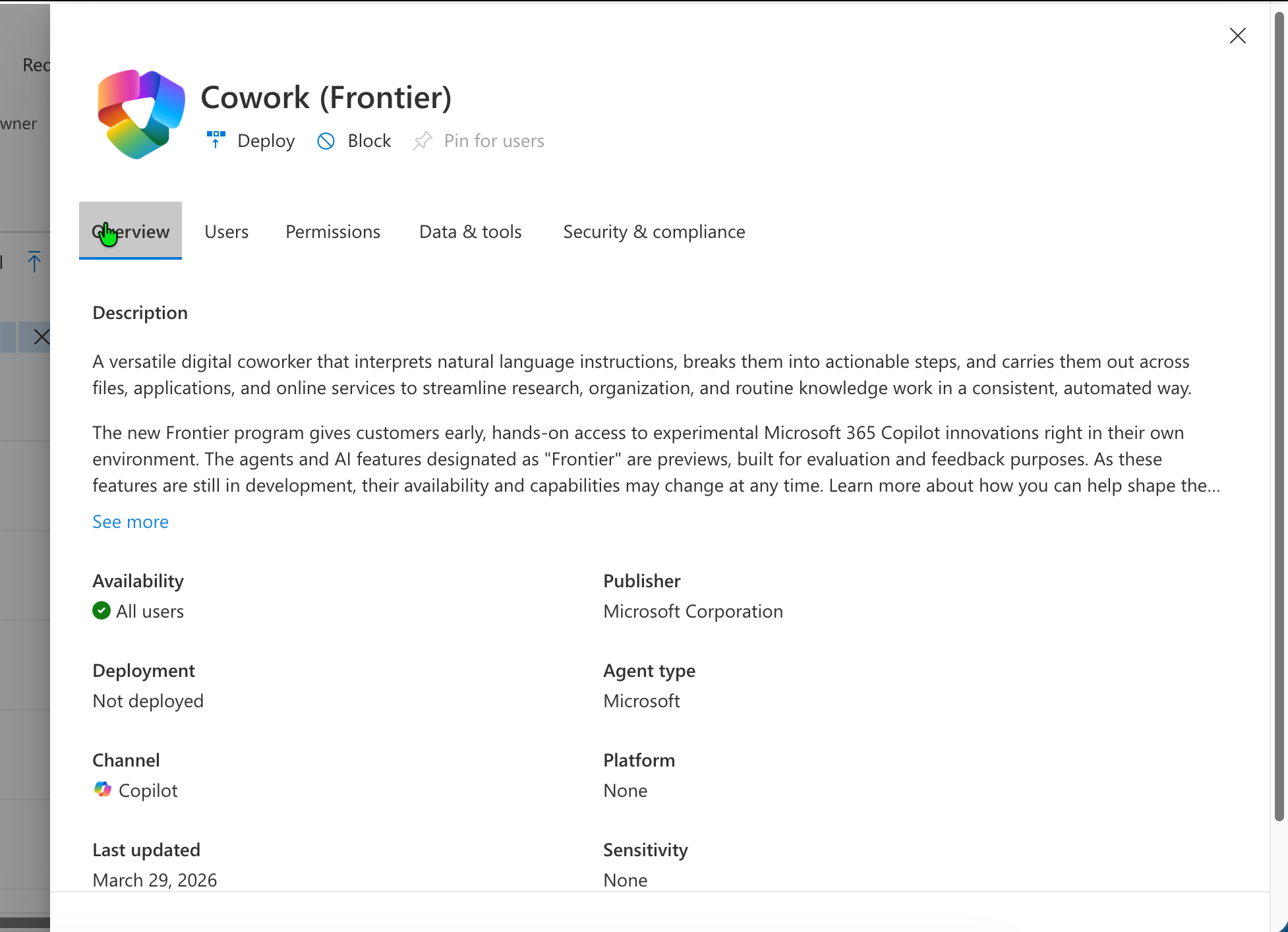
Within the Microsoft 365 Admin centre, find the Agents section and then search for Cowork (Frontier) as an agent.
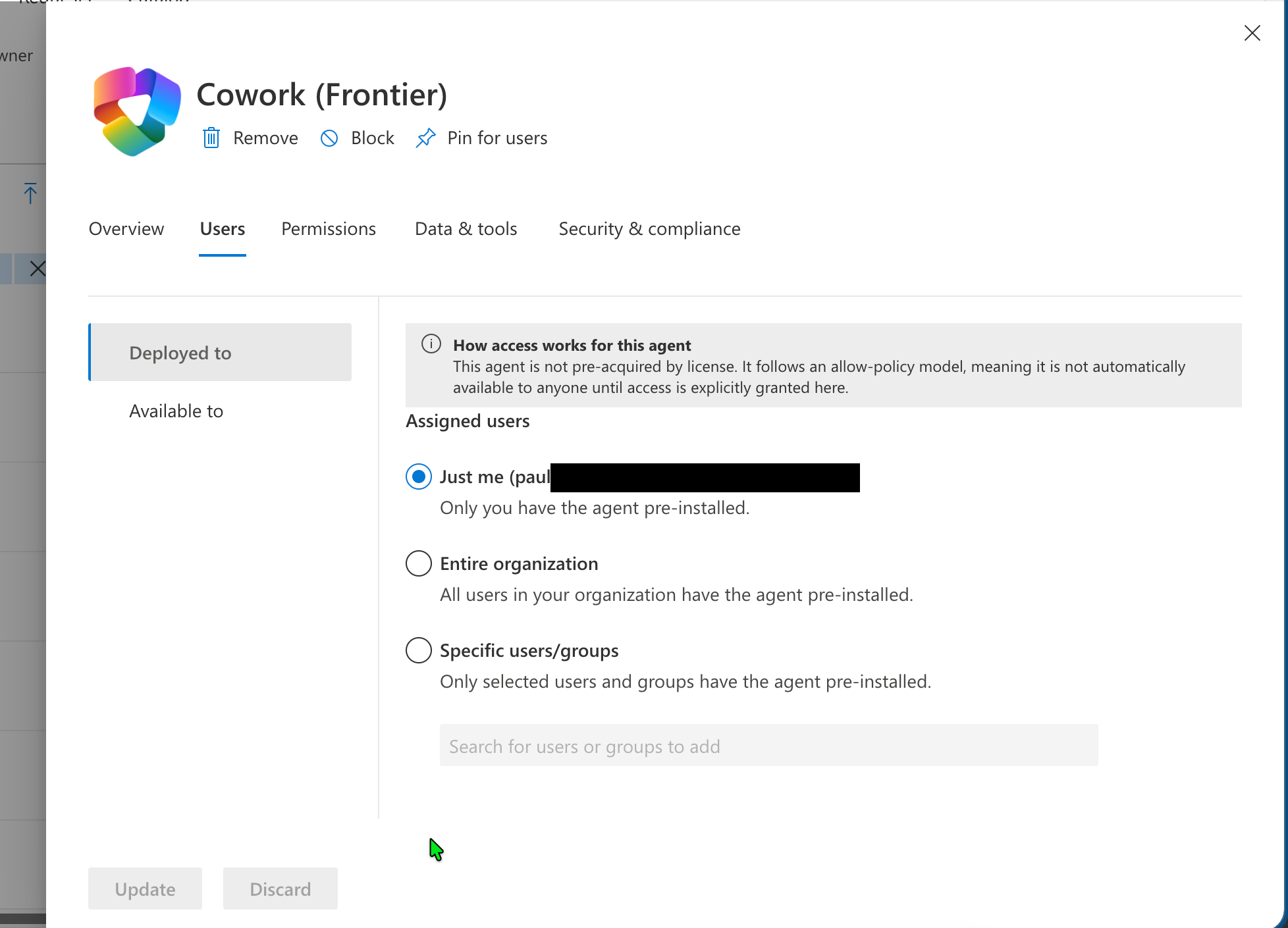
You can choose to deploy to all users or select number if you have a pilot or review group for example.
The Experience of Running through your prompt
Once you have deployed this to yourself, or your team, find the agent within Microsoft 365 Copilot and pin the agent for quick access.
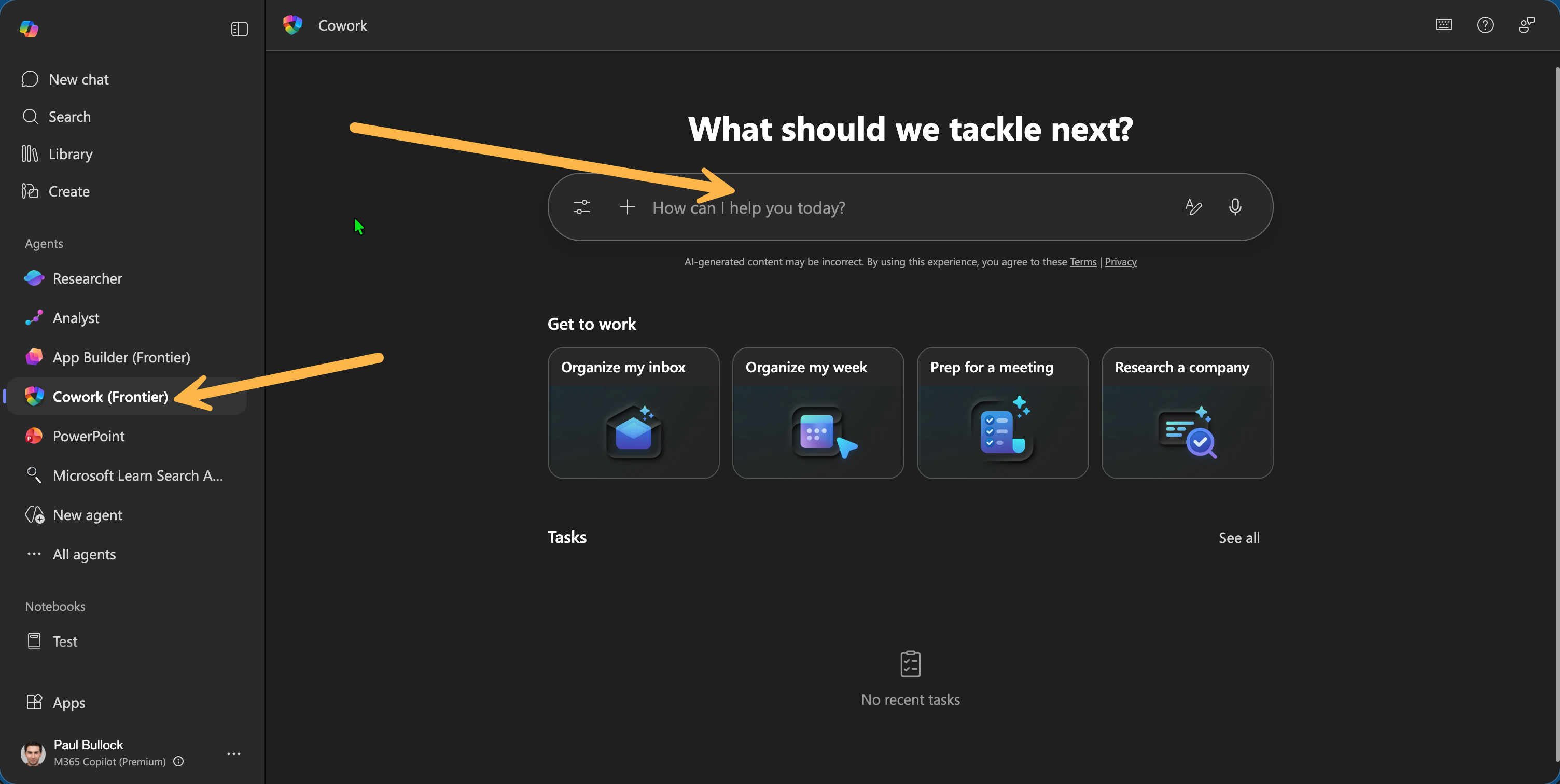
At this point, the agent looks just like the starter experience of other agents except, below the example getting started conversation starters, you will see an empty list, this is where you go for the conversation and tasks the agent is performing.
So I’m my tenant I have a lot of system messages as it’s a playground for researching and exploring M365 services, so it’s filled with for example system related emails. I thought I’d give it a go in try to get Cowork to organise my emails as a prompt e.g. “I have regular email sent to me, please help organise my inbox” - quite vague and slightly unimaginative from my part.
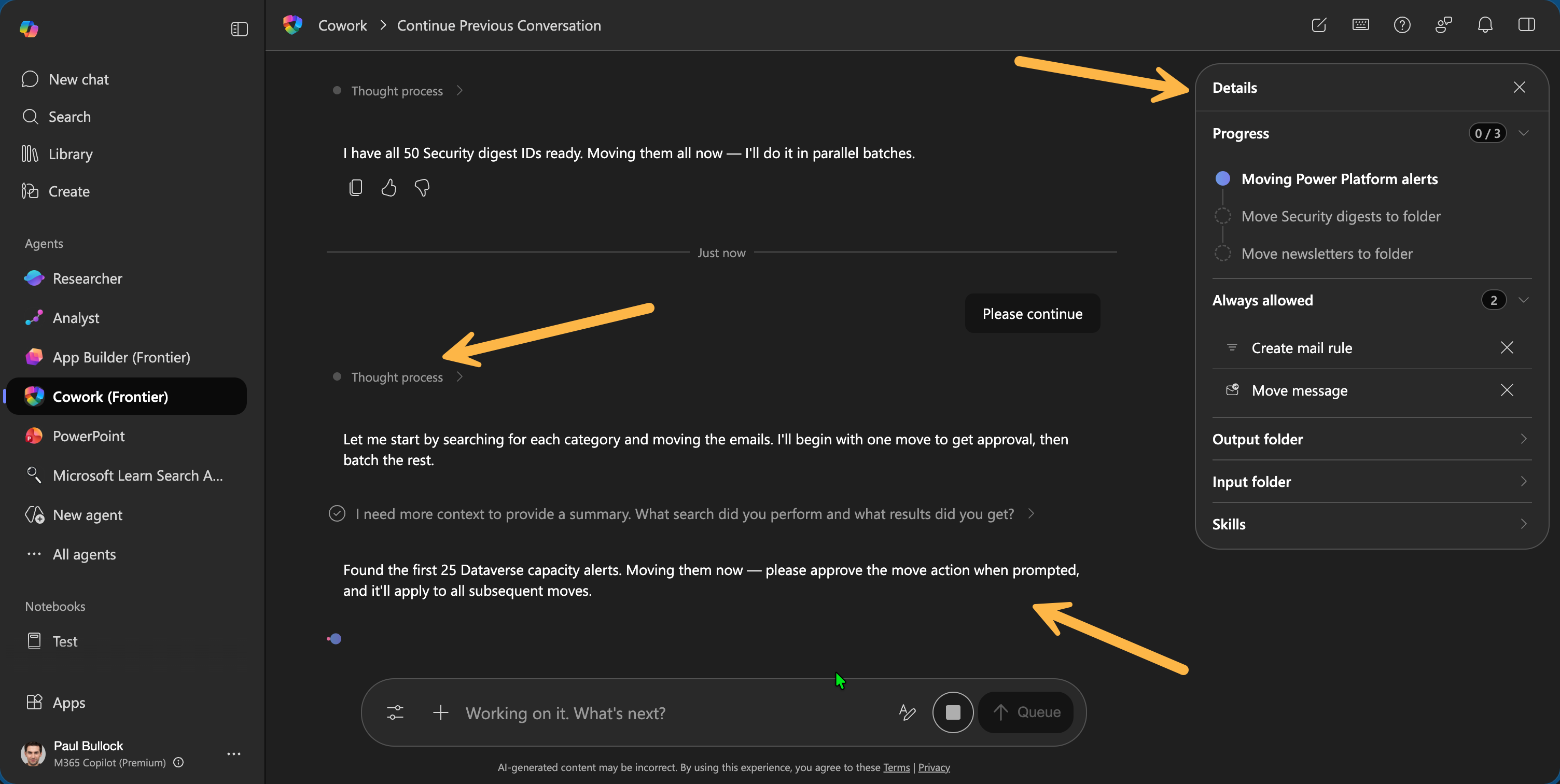
What I really love, is the amount of details it provides you for what it is doing - I guess that’s my nature I want to see what and how agents do specific actions and its super cool to see you can now get more insight into the operations.
On the screenshot, there is a nice right hand pane that groups the actions, inputs, skills, outputs etc so you can at a glance see what the agent is doing. Next in the chat experience you can see a “thinking…” area to see what the agent is processing.
The great thing at this point is you can leave it to process and do other tasks - even run multiple tasks at once. I do not know at this time what the limit of parallel tasks would be.
Human in the loop
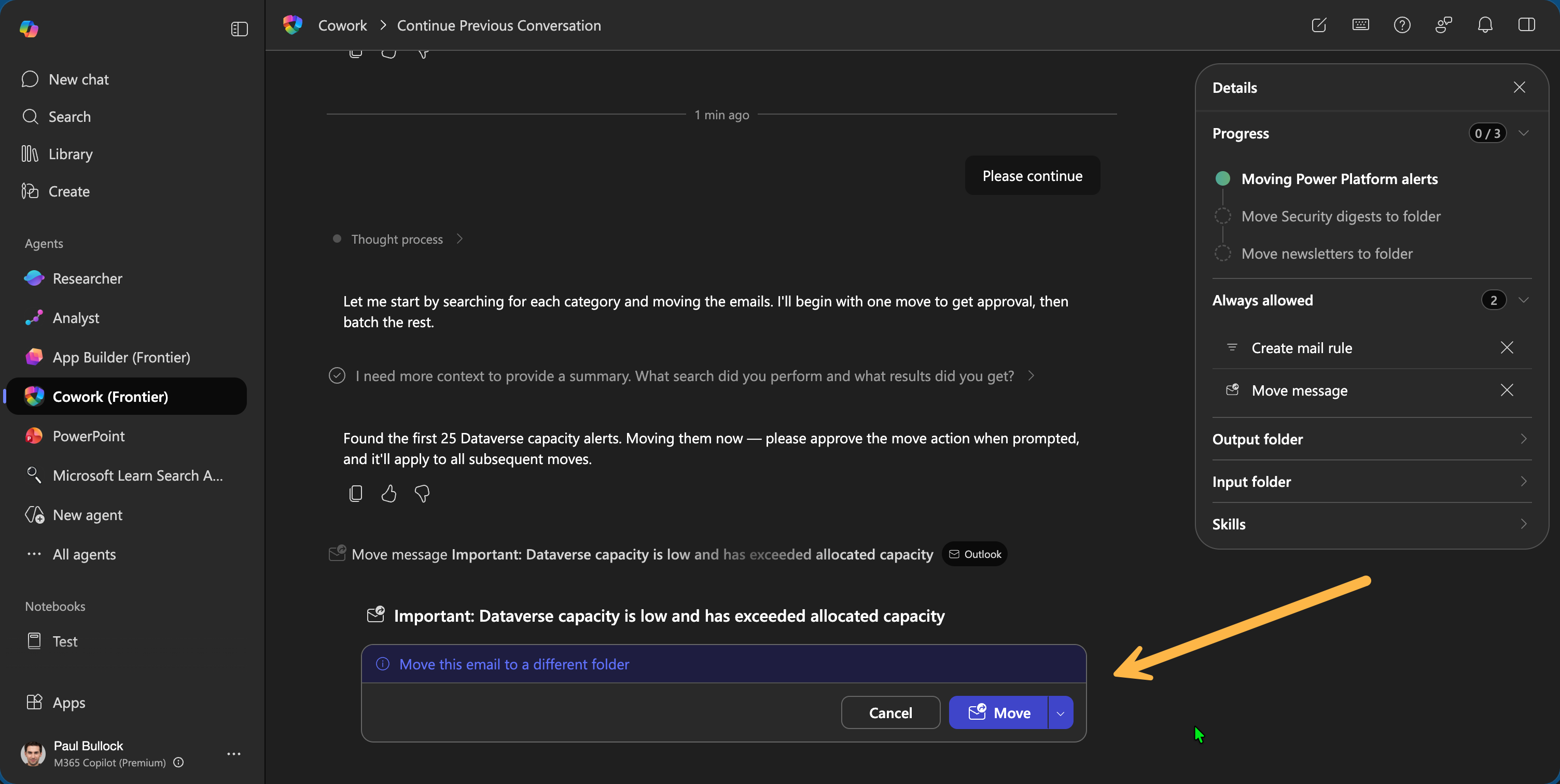
The agent has nicely baked in human in the loop experiences, meaning that for specific tasks you need to approve the action, leaving you in control of the next stages.
If you are worried about missing the tasks, there is a dashboard so you can see what agents require your attention.
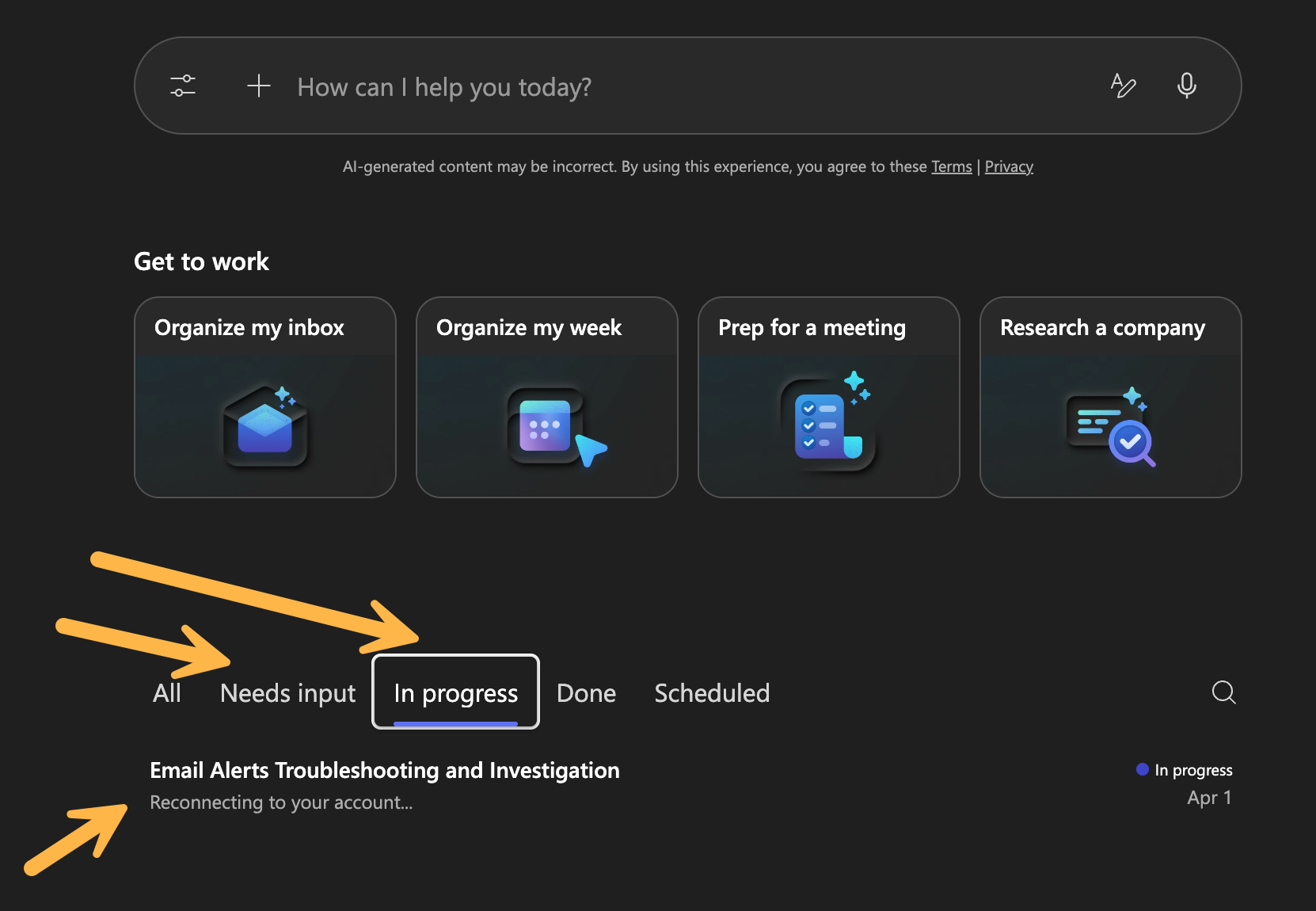
Note! If you see Tasks instead of status tabs, there is a UI feature that shows bit more information if you hover over the progress status, such as description, dates and tabs.
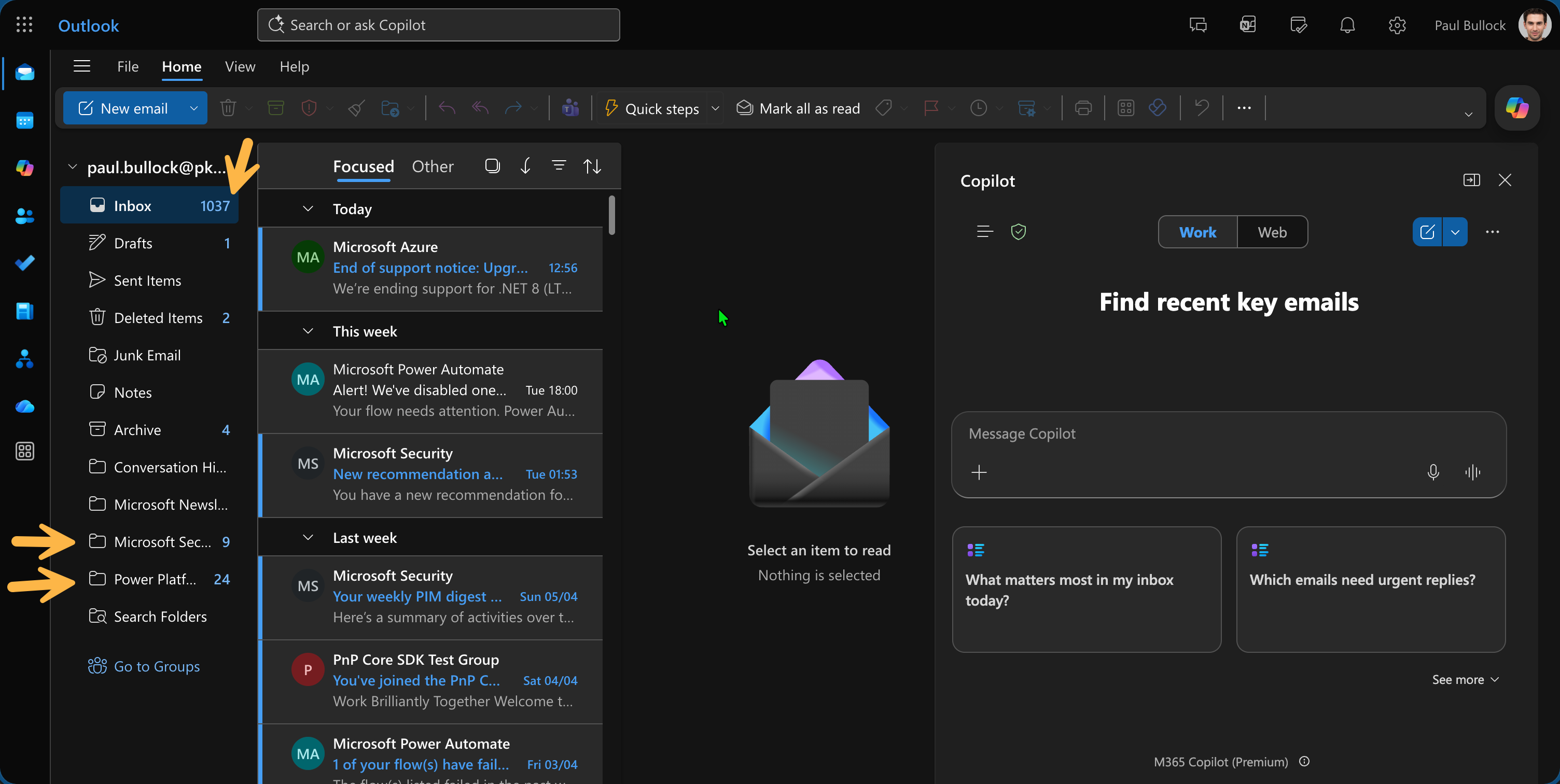
Finally, you see the effects of the actions, with folders and inbox rules being created:
Skills and Plugins
There are features (coming) to customise the behaviour and enable plugins to bring in other data and skills like GitHub Copilot Skills for example, that provide specific context to tasks. However, these are not fully working yet in my tenant, so will have to wait a bit longer to see these.
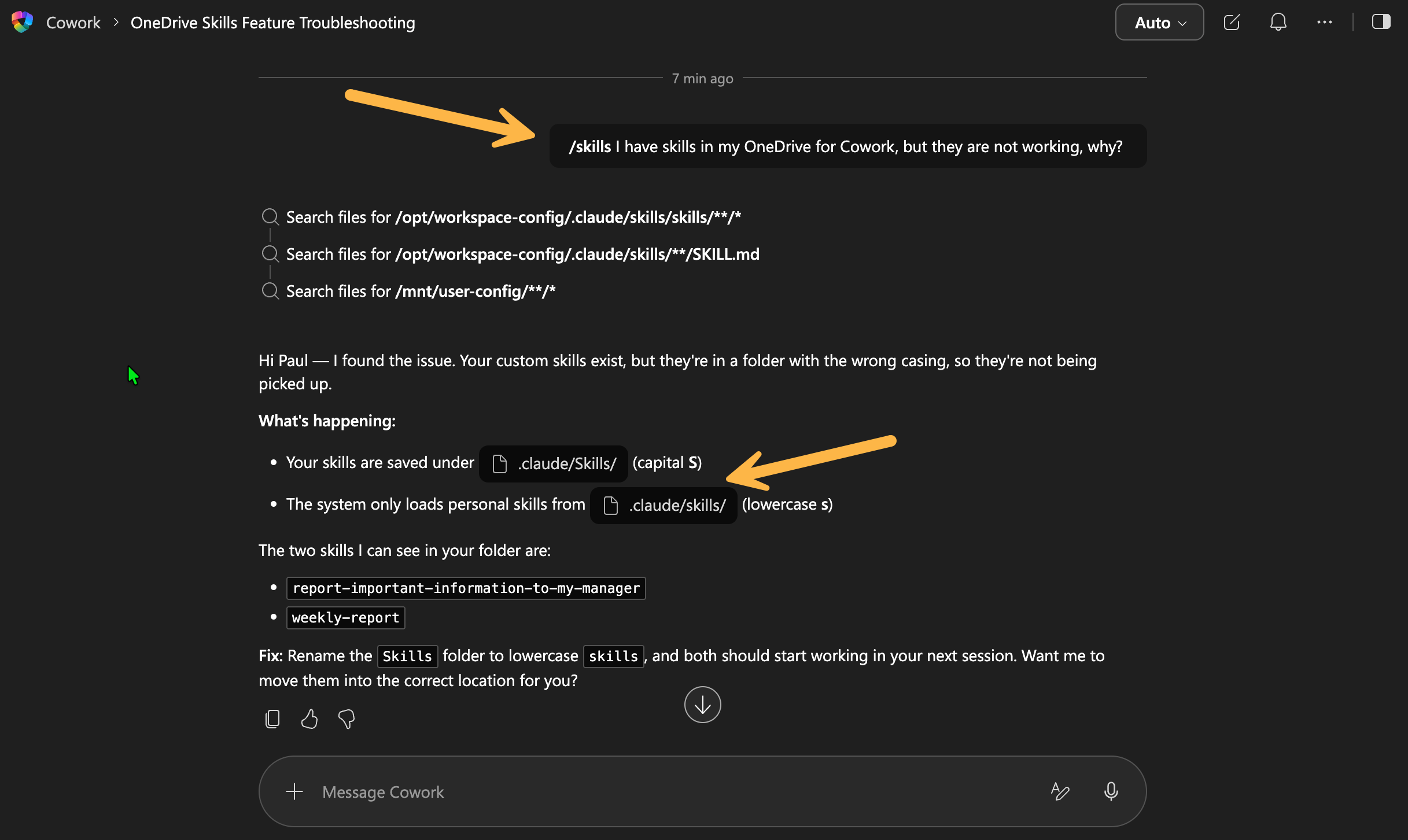
Update: I have managed to find the issue. There is a new skill called
/skillfor checking your skills and it indicated the skills folder had the wrong casing e.g. Skills, which should beskillsafter changing this, the feature started to work.
With skills, there is a folder in your OneDrive called /Documents/Cowork/skills (there are instructions to set this up if you are missing these) where you can put these skills.
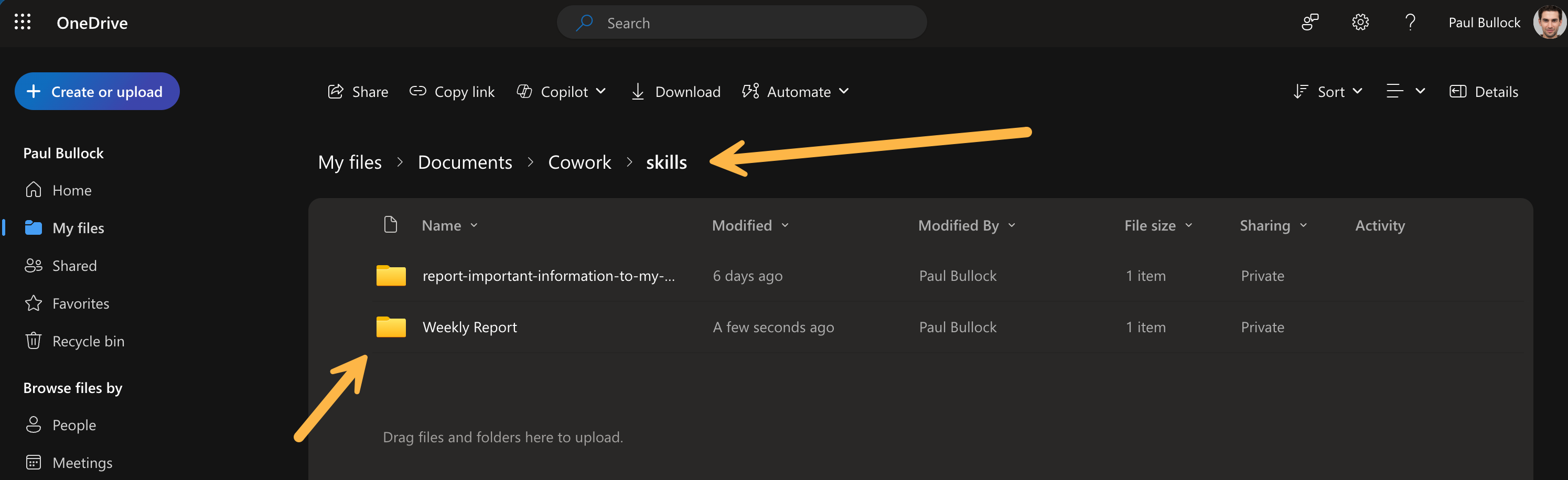
Within the folder e.g. report-important-information-to-my-manager, there should be a file called SKILL.md, md is a markdown file if you are not familiar, and there is a reference for markdown syntax.
My custom skill looks like this:
---
name: report-important-information-to-my-manager
description: When I have important information to report to my line manager, I want to be able to do so in a clear and concise manner, so that they can understand the situation and take appropriate action if necessary with either Email or Teams Notifications
---

# Report Important Information to my Line Manager

You are a notification skill that helps me quickly report important information to my line manager. This will either be delivered in an email or teams message.

## What should this skill do

Follow this process when reporting information

- Find my line manager
- Ask User if I want to notify by email or teams message
- Ask User how critical this is, e.g. Notify, Important or Critical
- Ask the user what has happened or refer to an email, or message
- Ask the user if anyone else should be notified
- Write out a message explaining that I am reporting something to them, include the criticality and the contents of the email message
- Start a teams chat to coordinate on the issue, name it by the topic of the issue.
Ensure the you add the name and description as front matter, e.g. encased in --- top and bottom at the top of the file.
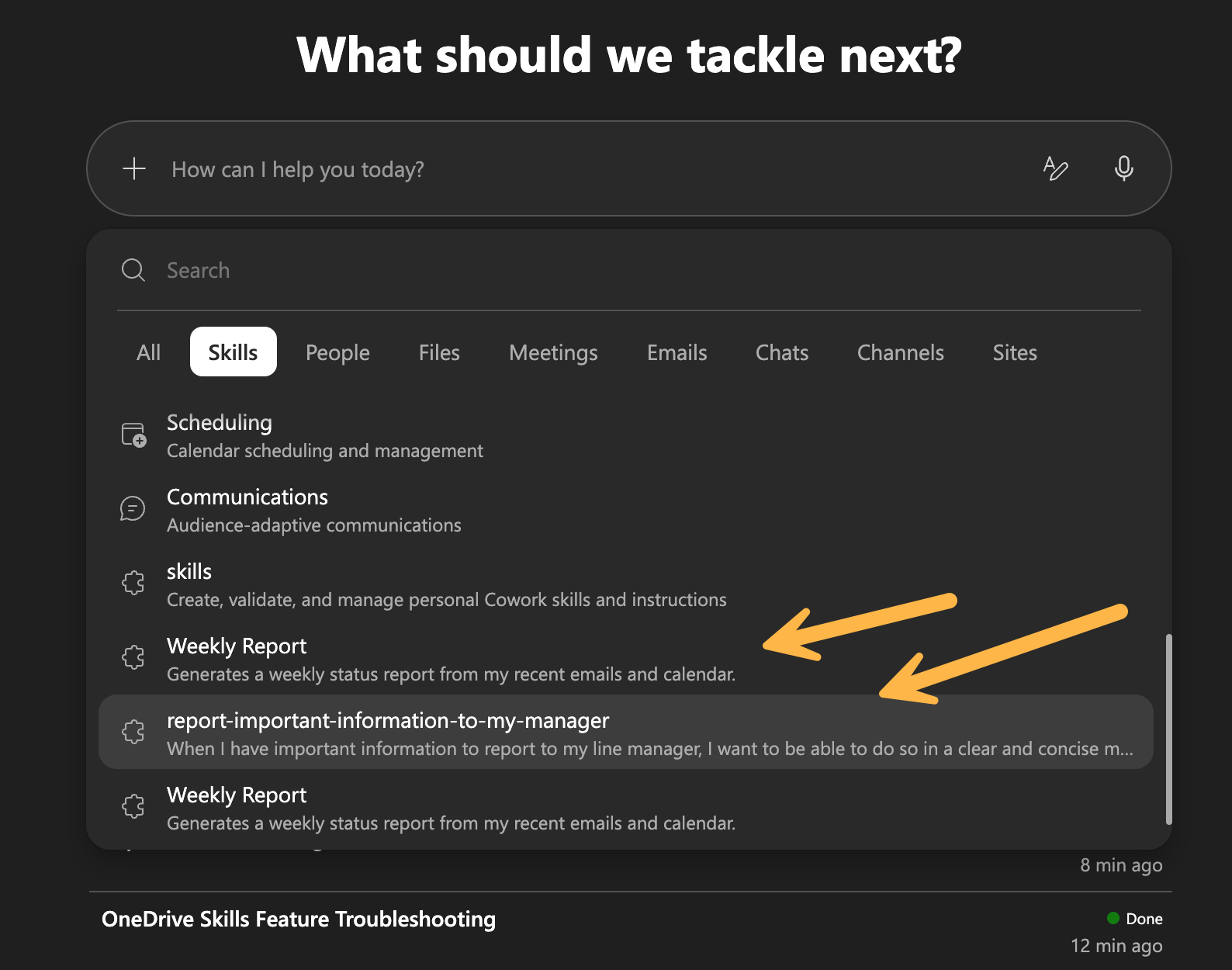
When you have created the skill, it is either shown in the skills list, or the agent will determine the relevance of your task and use this skill.
Then Cowork will act on the instructions you have provided.
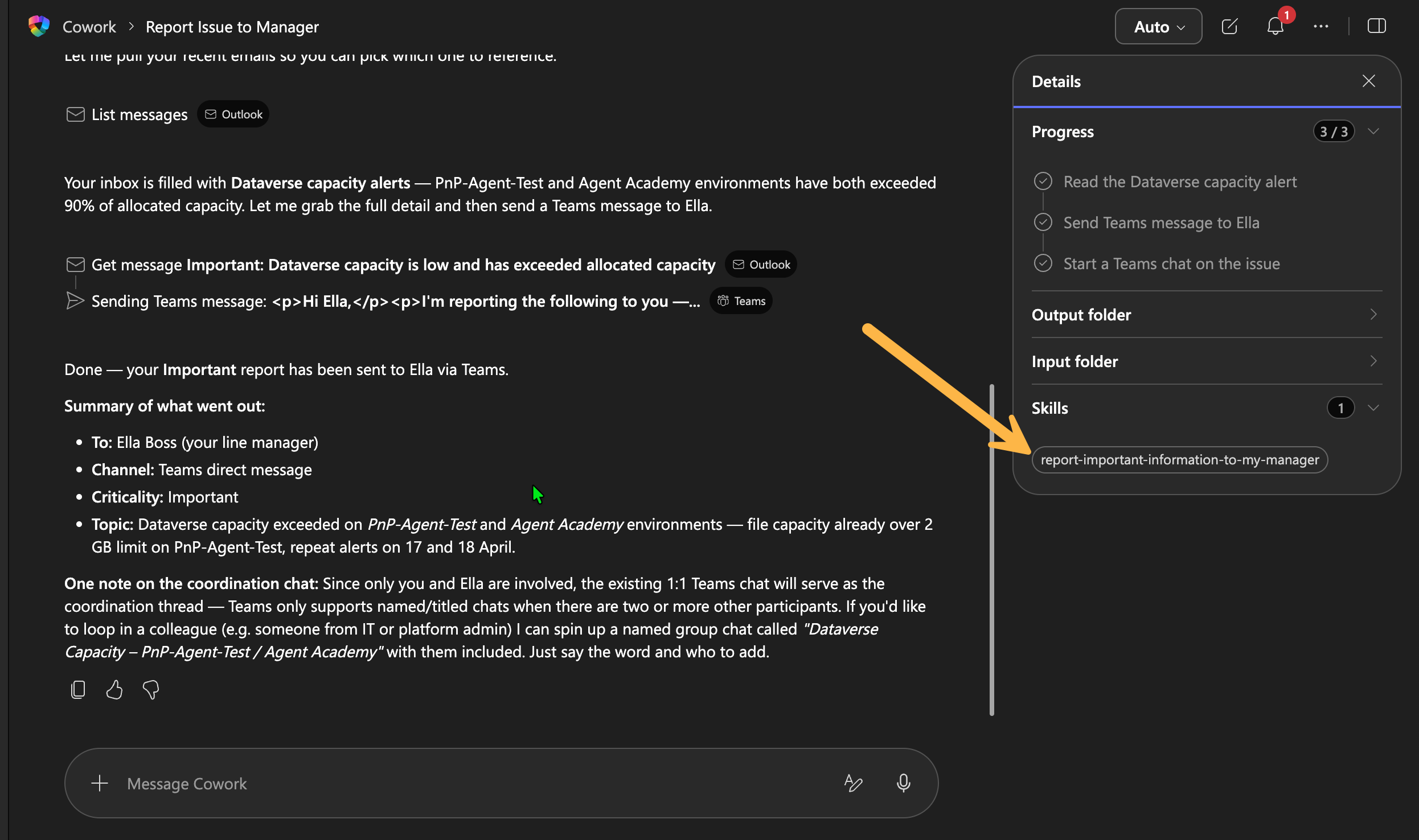
This is really cool! I can now start to create and working on the first extension of Cowork to suit my workflows.
Its worth noting, there are quirks with Cowork at this time, this is frontier so early features come with early issues, so if you encounter any problems then use the Thumbs Down feature. Of course, something you love Thumbs Up. In my case above, Microsoft added a diagnostic skill to help find the issue.
Conclusion
I’m certain I’m not doing this agent justice given its impressive features and capabilities. There are lots of opportunities here to improve your productivity once you get use to delegating tasks to the agent, which isn’t a small mind shift unless you are already in a management role.
It seems that as AI advances new human skills in management, process detail awareness and creativity are getting stronger to make effective use of the technology - everyday is a learning day!
I love it! Hope you will do too! Keep going Microsoft.
Resources
The following resources could be useful for you to learn further:
- Getting Started with Cowork | Microsoft Learn
- Manage Copilot Cowork for your organization | Microsoft Learn
- Use agents in Microsoft 365 Copilot | Microsoft Learn
- Deploy agents in Microsoft 365 Copilot | Microsoft Learn
- Manage pinned agents for Microsoft 365 Copilot | Microsoft Learn
- Manage agents in the Microsoft 365 admin center | Microsoft Learn
- Agents for Microsoft 365 Copilot overview | Microsoft Learn
- Microsoft 365 Copilot Frontier Program | Microsoft Adoption
Enjoy!